
Veo 3.1 AI Video Generator
Veo 3.1 generates 4 to 8 second clips with native dialogue, sound effects, and ambience in the same MP4, at 720p, 1080p, or 4K. Google DeepMind adds up to three reference images, first and last frames, and scene extension in 7 second steps.
What is Veo 3.1
Veo 3.1 is Google DeepMind's video generation model in the Veo family. It follows Veo 3 as the current natively audio-capable generate SKU. Fast is the quicker, lower-credit sibling of the same 3.1 line.
Native audio
Dialogue, sound effects, and ambience generate with the picture. CamArt Sound stays on by default.
720p to 4K
Gemini API documents 720p, 1080p, and 4K at 24 fps. 1080p and 4K must be 8 seconds.
Three image refs
Ingredients-to-video takes up to three stills of a character, object, or scene.
First and last frame
Two stills become one transition with audio on CamArt Start-End.
Scene extension
Each step adds 7 seconds on a prior Veo clip, 720p only, up to 20 times.
Physics and prompt follow
DeepMind cites MovieGenBench preference (Oct 2025) for physics and text alignment.
Examples of Veo 3.1 from X
Community clips on X made with Veo 3.1. Copy a prompt and try it in the editor.
-
Pets & Animals
Snow Leopard Cub
PROMPTHappy snow-leopard cub prances through snowy pine forest, tail swishing; it stops to shake snow off its whiskers, tiny sparkles float away. Eye-level medium shot that slowly arcs to the right, Pixar-style 3-D render, warm sunrise glow. audio: gentle chimes and crunching snow negative: no humans, no buildings
-
Pranks & Gotcha
Giant Grocery SUV
PROMPTUse the uploaded character as the exact character reference. Preserve the character’s face, facial features, hairstyle, skin tone and identity exactly as provided. Create a 10-second ultra-realistic vertical 9:16 video, matching the reference image’s giant-person perspective. Show the uploaded character as a massive giant towering over a busy city street. The character leans forward from behind the buildings and reaches down toward a normal-sized SUV/car on the street below. The giant is holding a large bright blue plastic shopping bag with one hand and uses the other hand to pick up the entire SUV/car and place it inside the blue shopping bag. The action must be very clear: the giant grabs the car → lifts it off the street → brings it toward the open blue shopper → lowers the entire car into the shopper → the car disappears inside the bag. The blue shopping bag must be large enough to realistically contain the whole car, with the bag visibly stretching and deforming around the vehicle as it goes inside. Keep the busy city intersection below with realistic moving buses, minibuses, cars and pedestrians. Film the scene from an elevated pedestrian bridge, with a metal railing visible in the foreground. Realistic giant scale, realistic physics, believable hand-to-car interaction, natural shadows, accurate perspective, daylight, blue sky, detailed urban environment, smartphone-style wide-angle footage, subtle handheld camera movement, photorealistic, 4K. Most important: the video must clearly show the giant putting the entire car inside the blue shopping bag. Do not make the car disappear magically. Show the complete pickup and placement action. No text, subtitles, watermark, logos, extra fingers, distorted hands, duplicate cars, face changes or character redesign
-
Cute & Wholesome
Avocado Cholesterol
PROMPTA cute 3D Pixar-style animated Avocado character with arms and legs, pushing a massive, heavy ball of yellow waxy cholesterol along the floor of a red artery. The Avocado looks determined and strong. The background shows a blood vessel being cleared. Cinematic lighting, dynamic angle, 8k, highly detailed. As it pushes, the character looks at the camera and says with a deep friendly voice: "Hi, I am Avocado, the best fruit to lower cholesterol." Cinematic lighting, 3D animation.
-
ASMR & Satisfying
Kingfisher Water Strike
PROMPTElectric-blue kingfisher pierces the water surface, droplets suspended in mid-air like scattered diamonds; riverbank reeds blur behind. 400 mm telephoto realism, 1/8000 s freeze, creamy bokeh. audio: faint splash + wing flutter negative: no people, no artificial structures
-
Camera Magic
Achaemenid Empire FPV
PROMPTextremely fast-paced cinematic FPV flying through the Achaemenid Empire at its peak, hyper-realistic 4K, dynamic motion blur, sweeping through grand palaces of Persepolis, towering columns, intricate bas-reliefs, massive staircases, golden sunlight casting long shadows, soldiers in authentic Persian armor marching in formation, royal guards, bustling ancient marketplaces, silk and spice trade, desert landscapes blending into lush gardens, fire temples glowing at dusk, epic scale, dramatic lighting, cinematic depth of field, lens flares, seamless high-speed transitions, historical accuracy, rich textures, HDR, 60fps, film-grade color grading
-
Cinematic
Lydian Kingdom FPV
PROMPTextremely fast-paced cinematic FPV flying through the ancient Lydian Kingdom at its peak, weaving through grand marble temples, bustling marketplaces, golden coin minting workshops, and royal palaces in Sardis, highly realistic historical reconstruction, dramatic lighting, rich textures, golden hour ambiance, crowds in authentic ancient attire, epic scale, 4K, hyper-detailed, immersive, cinematic color grading, smooth yet intense pacing
Key Features of Veo 3.1 AI Video Generator
What Google documents for Veo 3.1, written as controls you can actually prompt: native audio, 4K, three image refs, first-last frames, and scene extension.
-
Native dialogue, SFX, and ambience
DeepMind generates sound with the picture. Name the line, the room tone, and the effects in the prompt. CamArt Sound stays on by default.
-
720p, 1080p, and 4K
Gemini API documents 24 fps at 720p, 1080p, or 4K. 1080p and 4K must be 8 seconds. Fast on CamArt stops at 1080p.
-
Up to three reference images
Ingredients-to-video takes up to three stills of a character, object, or scene. CamArt Omni Reference is images only, no video or audio refs.
-
First and last frame
Start-End locks the opening and closing stills and generates the transition with audio. Keep it separate from Omni Reference.
-
Scene extension, plus 7 seconds
Each extend step adds 7 seconds onto a prior Veo clip at 720p. Use CamArt Veo 3.1 Extend when you need a longer beat than 8 seconds.
-
Physics and prompt follow
DeepMind cites MovieGenBench preference (Oct 2025) for realistic physics and text alignment. Name the camera move instead of hoping Veo invents it.
Name the camera, the line of dialogue, and the refs.
Veo 3.1 follows action, camera, and sound when you keep Standard, Omni (up to 3 images), or Start-End consistent with the stills you attached.
Veo 3.1 Model Comparison
Veo 3.1 is a 320-credit 4 to 8 second native-audio job plus a +7 second extend, whereas Kling 3.0 and Seedance 2.5 charge per second and Sora 2 runs 5 to 10 seconds.
| Fact | Veo 3.1 | Kling 3.0 | Seedance 2.5 | Sora 2 |
|---|---|---|---|---|
| Issuer | Google DeepMind Veo 3.1. | Kuaishou Kling 3.0 Standard, Pro, and 4K SKUs. | ByteDance Seed. 30-second one-take plus dense refs. | OpenAI Sora 2. Connected on CamArt Generate. |
| Best for | Photoreal 4 to 8 second clips with a +7 second extend. | 3 to 15 second cinematic clips with a 4K SKU. | 30-second story takes with dense Omni refs. | 5 to 10 second native-audio clips at 720p or 1080p. |
| Strength | Native dialogue, effects, and ambience billed per job. | Optional Sound and Multi-Shot from a written shot list. | One-pass audio-video story plus timestamp edit. | OpenAI native-audio T2V and I2V at 10 credits per second. |
| Duration on CamArt | 4 to 8 seconds, then a +7 second extend SKU. | 3 to 15 seconds per Generate job. | 4 to 30 seconds, then multi-round extend. | 5 to 10 seconds. |
| Resolution on CamArt | 720p, 1080p, or 4K. | 720p to 4K in the picker, including a dedicated 4K SKU. | Turbo 720p / 1080p. Standard can pick 4K in the picker. | 720p or 1080p. |
| Native audio | Yes. Native soundtrack on connected SKUs. | Optional Sound. Start and end frames sit on the same 3.0 card. | Yes. Joint picture and sound in one pass. | Yes. Native soundtrack on connected SKUs. |
| Modes and refs | T2V, I2V, Omni 1 to 3 stills, Start-End. | T2V, I2V, Start-End. No Omni on CamArt 3.0 Generate. | Omni 30 images / 10 videos / 10 audio, clay-render, Start-End. Timestamp edit on Edit SKUs. | T2V and I2V. I2V framing follows the source still. |
| CamArt credits | 320 credits per job on Veo 3.1, not per second. Fast is 120 credits at 8 seconds. | Pro is 11.2 credits per second (56 at 5 seconds). | Turbo is 20 credits per second (100 at 5 seconds 720p). | 10 credits per second (50 at 5 seconds). |
Sources: Google Veo 3.1; Kling VIDEO 3.0 guide; ByteDance Seedance 2.5; OpenAI Sora.
Why Choose Veo 3.1 AI Video Generator in CamArt
Choose Veo 3.1 when the job is an 8 second clip with native sound, up to 4K, and three image refs. CamArt runs Quality by default, with Fast as the 120-credit SKU.
Ship picture and sound together
Veo 3.1 generates dialogue, sound effects, and ambience in the same MP4. You do not have to add a track later unless you want to. Spoken lines can still slip; DeepMind calls that an active limitation.
- Leave Sound on unless the brief is silent.
- Write the line of dialogue in the prompt so the model has something to time.
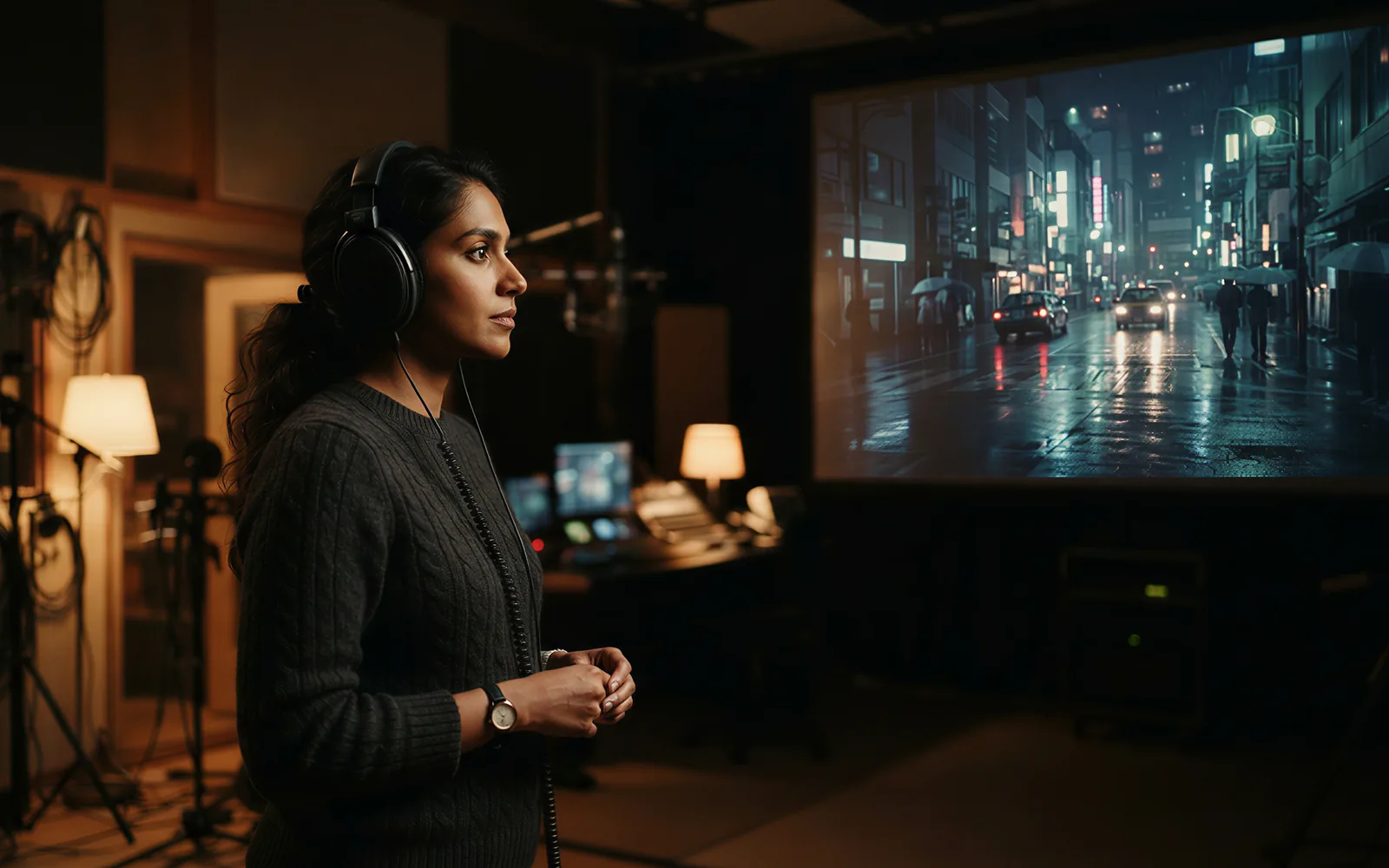
Render 720p, 1080p, or 4K when Quality is selected
Google documents 24 fps at 720p, 1080p, and 4K. 1080p and 4K must be 8 seconds. CamArt Fast stops at 1080p when you need a cheaper take.
- Use 720p to draft, 4K to finish on Quality.
- Switch to Veo 3.1 Fast only when you do not need 4K.
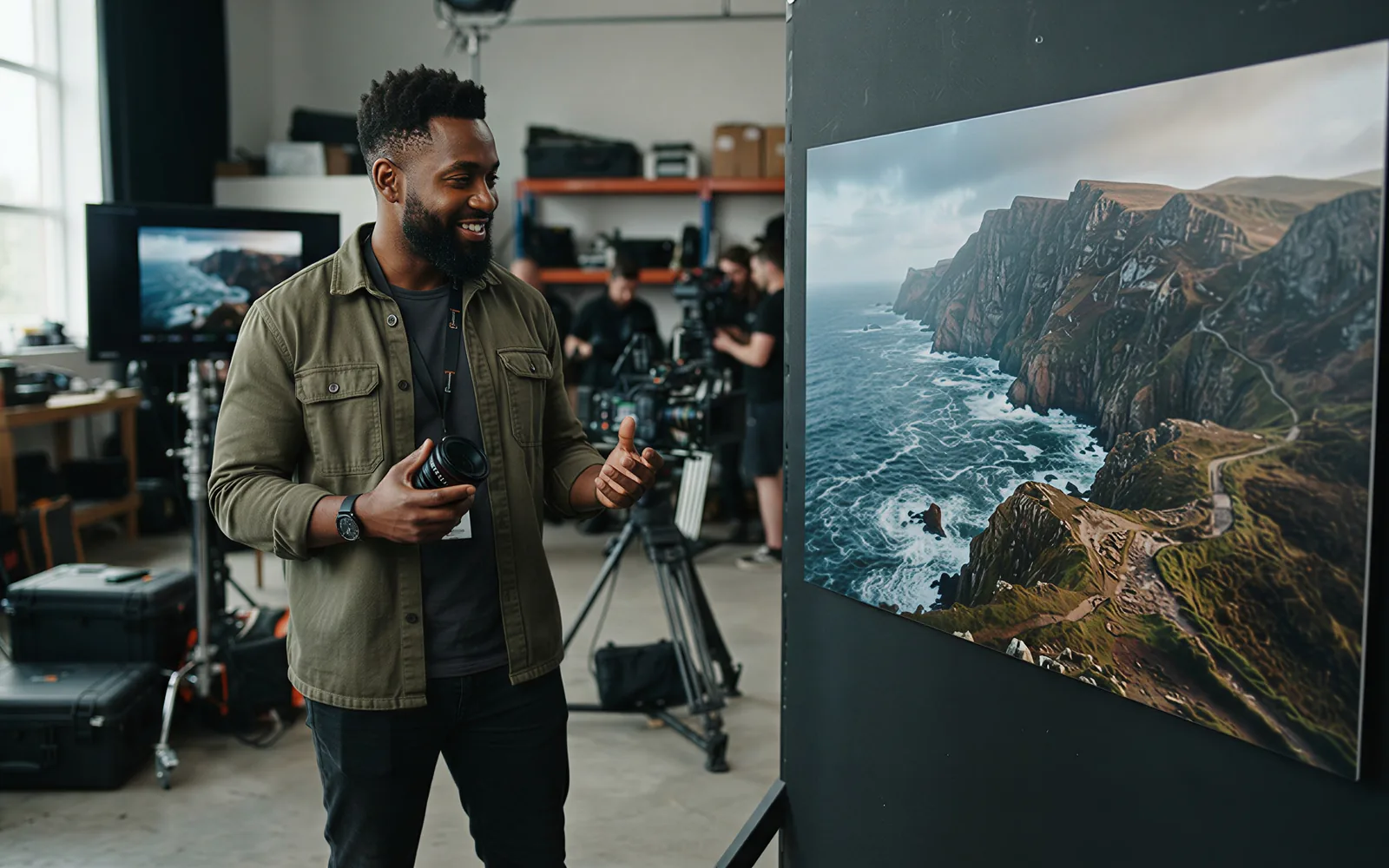
Hold a face or product with up to three stills
Ingredients-to-video takes up to three reference images. CamArt Omni Reference is 1 to 3 images, with no video or audio refs, and a fixed 8 second clip.
- Attach up to three stills before you Generate.
- Use Start-End instead when you need first and last frames.
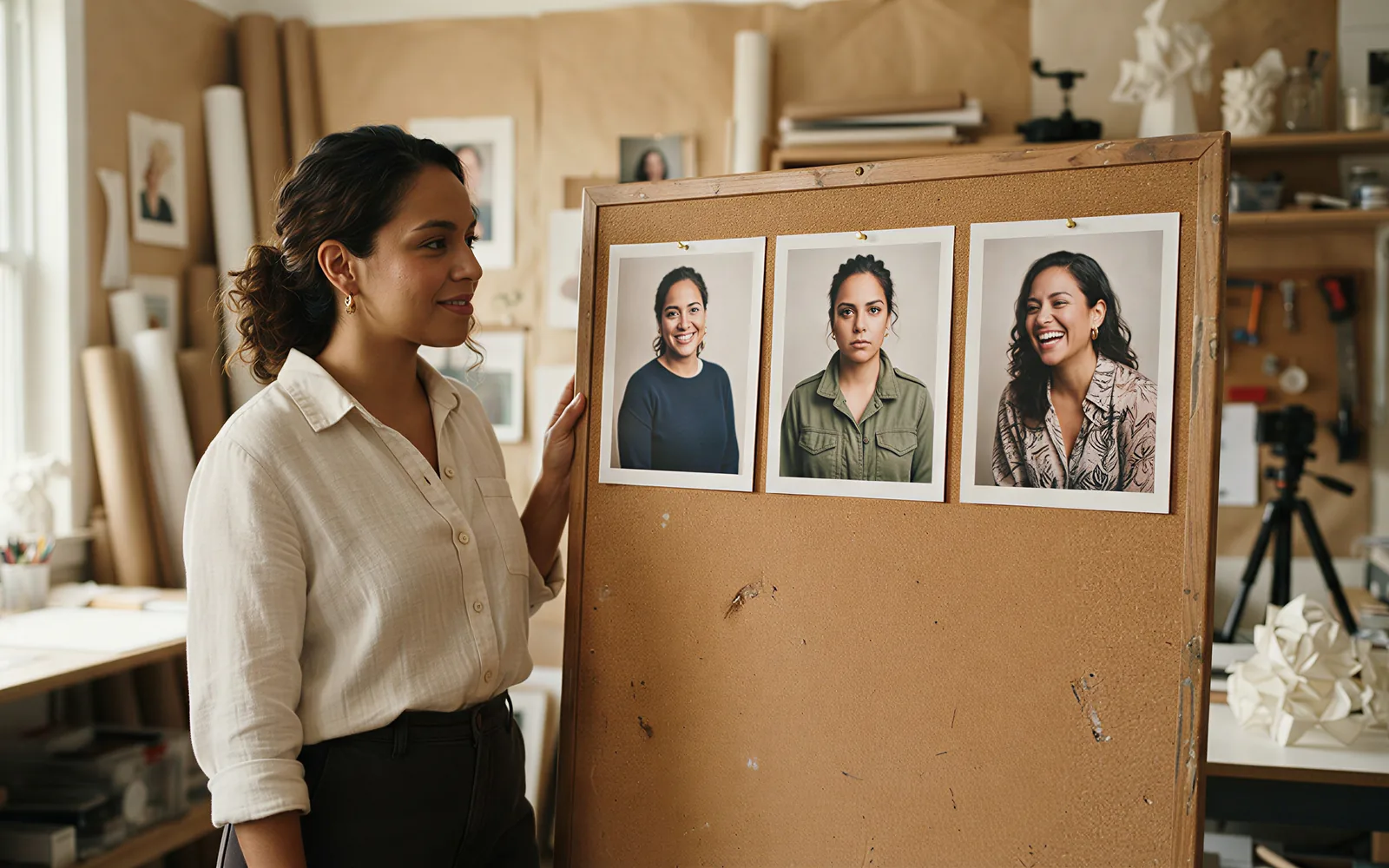
See credits on Generate before you spend
CamArt bills 1 credit as $0.01 COGS. Veo 3.1 Quality is 320 credits flat ($3.20). Fast is 120 credits ($1.20). The button shows the charge before you start. A 4 second Quality job is not cheaper than 8 seconds on CamArt.
- Draft on Fast at 120 credits when 1080p is enough.
- Use Quality when you need 4K or the 4 to 8 second window.

How to Use Veo 3.1 AI Video Generator in CamArt
Three steps from an 8 second brief to a saved clip.
-
STEP 01
Write the shot and the sound
Keep Veo 3.1 selected. Write subject, action, camera, and audio, or upload a start frame and a last frame for Start-End.
-
STEP 02
Attach up to three stills and set length
Omni Reference takes 1 to 3 images. Set duration (4, 6, or 8 seconds) and resolution (720p to 4K on Quality).
-
STEP 03
Generate, preview, and save
Hit Generate. Preview picture and sound, then save from Creations. Switch to Veo 3.1 Fast when you want 120 credits instead of 320.
Who Should Use Veo 3.1 on CamArt
Veo 3.1 fits briefs that need native sound, up to 4K, and three image refs in an 8 second clip. Longer beats use scene extension, not a 30 second one-shot.
-
Brand and performance marketers
Native audio plus 9:16 fits an 8 second product beat without a separate sound pass.
-
Filmmakers and previs teams
Use first and last frames, then extend in 7 second steps when the beat needs to continue.
-
UGC and social editors
9:16 on CamArt plus native dialogue fits talking-head and lifestyle briefs.
-
Product explainers
Up to three stills keep a pack shot or character on-model across an 8 second clip.
-
Agencies pitching campaigns
Credits show on Generate: 320 for Quality, 120 for Fast, before you spend.
-
Cinematic VFX tests
DeepMind's physics and 4K ladder suit one-shot spectacle. Long stories still need extend chains.
Explore More AI Video Models on CamArt
FAQs
How is Veo 3.1 different from Veo 3?
Google launched Veo 3.1 on 15 Oct 2025 at the same list price as Veo 3, with richer native audio, stronger image-to-video, up to three reference images, first and last frames, and scene extension. On CamArt the sibling SKU is Veo 3 Fast (8s, 720-1080p). This page defaults to Veo 3.1 Quality.
Does Veo 3.1 generate audio with the picture?
Yes. DeepMind and the Gemini API document natively generated dialogue, sound effects, and ambience in the same MP4. CamArt Sound stays on by default. DeepMind still lists consistent spoken audio as an area of active development.
What resolution does Veo 3.1 support?
The Gemini API documents 720p, 1080p, and 4K at 24 fps. 1080p and 4K must be 8 seconds. On CamArt, Veo 3.1 Quality is 720p to 4K. Veo 3.1 Fast is 720p to 1080p. Veo 3.1 Lite is a Google SKU and is not on CamArt.
How long can Veo 3.1 videos be?
One generation is 4, 6, or 8 seconds. CamArt Quality offers 4 to 8 seconds; Fast is 8 seconds. Scene extension adds 7 seconds per step on a prior Veo clip, at 720p only, up to 20 times. That is not a 30 or 60 second one-shot.
Can Veo 3.1 use reference images and first/last frames?
Yes. Ingredients-to-video takes up to three stills of a character, object, or scene. CamArt Omni Reference is 1 to 3 images only, with no video or audio refs. Start-End locks first and last frames. Keep Omni and Start-End as separate modes.
What is Veo 3.1 Fast on CamArt?
Fast is the quicker, lower-credit SKU of the same 3.1 family. CamArt bills 120 credits flat ($1.20) versus 320 credits ($3.20) for Quality. Fast tops out at 1080p and 8 seconds. Pick Fast in the model control when wall time matters more than 4K.
Does CamArt run Veo 3.1 Lite or Gemini Omni?
No. Lite exists on Google and does not include 4K or scene extension. Gemini Omni replaces Veo in the Gemini app (10s, up to 5 photos, avatars). This page runs Veo 3.1 Quality and Fast on CamArt, not Omni and not Lite.
Are Veo 3.1 videos watermarked?
Google watermarks Veo outputs with SynthID. CamArt does not claim watermark-free files. Ranking pages that advertise no watermark are not our source.
How do I generate a Veo 3.1 clip on CamArt?
Sign in with Google or an email magic link. Keep Veo 3.1 selected, write the prompt, set duration and resolution, then Generate. Credits shown on the button are deducted on start (1 credit = $0.01 COGS). Quality is 320 credits flat; Fast is 120. Commercial use follows CamArt terms and third-party model terms.
Generate a Veo 3.1 clip
Describe the shot and the sound, or upload a starting frame. Keep 4K and native audio in mind, then hit Generate.